Make WooCommerce Search Find Your SKUs
Your regulars know your part numbers better than your product names — trade buyers, repeat customers, your own support team. WooCommerce ignores all of them: SKUs live in a meta table native search never touches. Here’s why, and how to fix it properly.
2Why WooCommerce Ignores Your SKUs
It’s a data-model quirk with a customer-facing cost. A product’s SKU isn’t stored with its title and description — it lives in the wp_postmeta table as a _sku entry. Native search only scans titles, content and excerpts in wp_posts:
-- what native search scans          -- where your SKU actually lives
wp_posts.post_title                  wp_postmeta: meta_key = '_sku'
wp_posts.post_content                             meta_value = 'WBK-2041'
wp_posts.post_excerpt
The two never meet. A shopper who types WBK-2041 — the exact, correct part number, straight off your own spec sheet — gets the most damaging response a store can give a ready buyer: “No products were found matching your selection.”
2Who Searches By SKU? Your Best Customers
- Trade and B2B buyers re-ordering from a list — they know the part number, not your product name.
- Repeat customers re-buying a consumable from an old invoice or the label on the box.
- Your own staff on the phone with a customer, using the storefront search because it’s the fastest tool open.
- Comparison shoppers pasting a model number from a manufacturer’s site to see if you stock it.
Every one of them arrives with the highest purchase intent your store will see all day — and native search turns them away with an empty page.
2The DIY Fixes, Honestly Assessed
- The functions.php snippet. The classic approach joins
wp_postmetainto the search query. It works — and it makes an already slow scan slower, because postmeta is your database’s biggest table and the join runs on every search, for every shopper. - SKU-search plugins that stay in WordPress. Same trade-off with better packaging: the lookup still happens in MySQL on your hosting, and it typically covers SKUs only — a search for
WBK-2041 blackmixing SKU and words still fails.
2How NitroSearch Handles SKUs
The plugin indexes every product’s SKU — and every variation’s SKU — into the same dedicated search index as names, brands and categories. That changes what a SKU search can do:
- It’s as-you-type. Matching starts from the first characters, so
WBK-20surfaces WBK-2041 and its siblings before the shopper finishes typing — useful when they remember the prefix but not the tail. - Variations resolve to the right product. Search any variation’s SKU and the parent product comes back; the shopper lands on the product page and picks their size or colour there.
- Mixed searches work. SKU, name, brand and category all match in the same keystroke —
WBK-2041andwestbrook hoodieboth land on the same product. - Your server does none of it. The lookup runs on our cloud-hosted engine, straight from the shopper’s browser — no postmeta join, no extra load on your hosting.
The Practical Details
The parts store owners actually ask about, answered plainly.
SKUs Stay In Sync
Change a SKU and the plugin queues the update in its outbox and retries until the engine confirms it — the index never quietly drifts from the catalogue.
No Re-Typing, No Mapping
Your existing SKUs are picked up from WooCommerce as-is, parent and variation alike. There’s nothing to re-enter and no field mapping to maintain.
Typos Still Forgiven
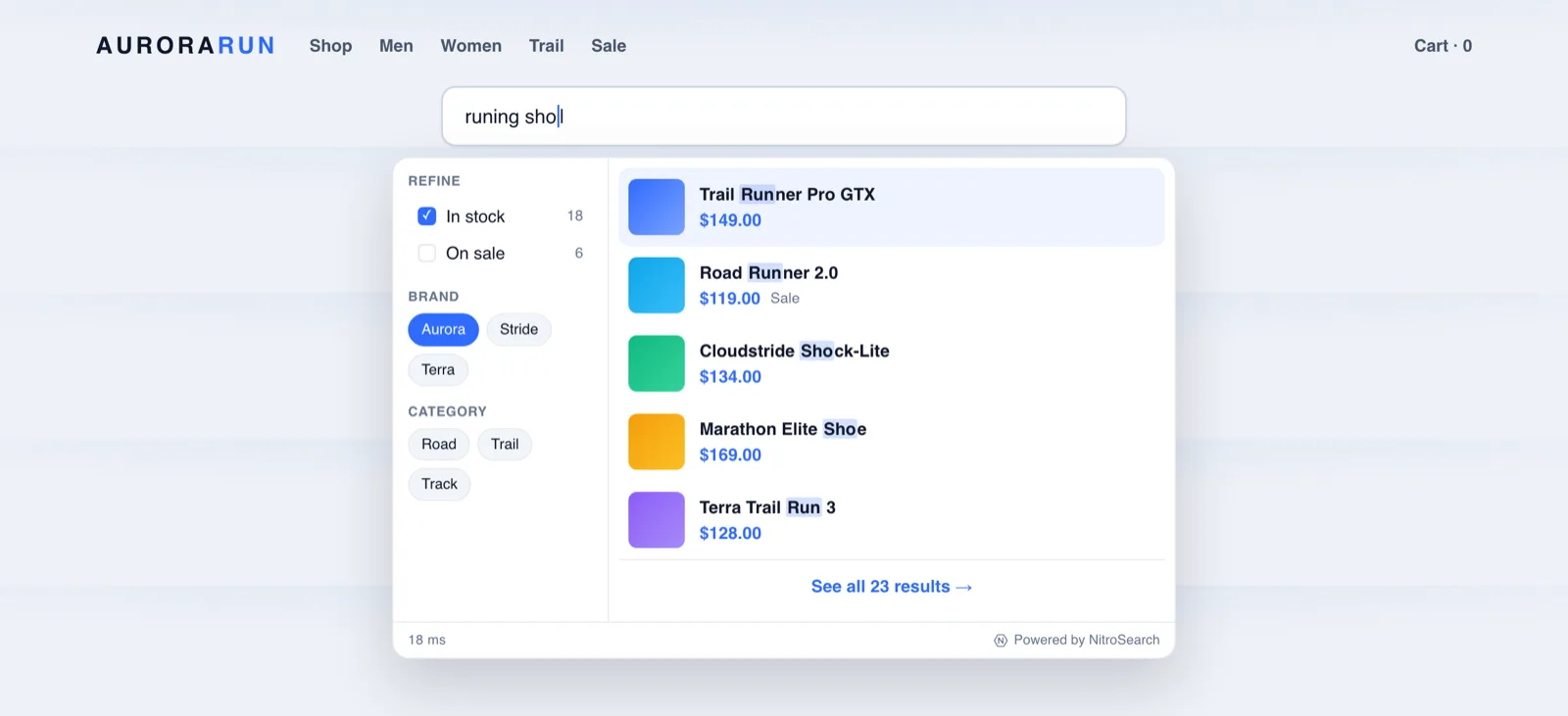
The same typo tolerance that rescues “runing shoes” applies across search — and exact matches always rank first, so a precise SKU goes straight to the top.
SKU search is one symptom of a wider gap — see everything that makes WooCommerce search return nothing, or the full improvement guide.
Frequently asked
Does WooCommerce search SKUs by default?
How do I let customers search by SKU in WooCommerce?
Do variation SKUs work too?
Do partial SKUs match as you type?
More on WooCommerce search
WooCommerce behaviour and product capabilities described on this page last checked 1 August 2026.
Let Them Search The Way They Order
SKU search is standard on every NitroSearch plan — free up to 100 search results, live in minutes.
Free up to 100 search results · No card required · Cancel anytime